Throughout this course, I have learned a multitude of information that I didn't expect to learn, especially this week! In week 7, we have discussed how computers boot up, the difference between applications and system software and system utilities like anti-virus software. Although it might be easy to discern which each topic involves, there is much more than the eye can see.
Booting a computer is one of the first things that any PC user learns to do. But most of us never learn much more about booting a computer than pressing the 'on' button or restarting the computer through Windows operations and commands. Booting up a PC is not difficult, but it is important to fully understand the parameters of various ways of starting up a computer. For instance, before this lecture I didn't even know there was such a thing as cold boot or warm boot. A cold boot is when the computer is physically off and is allowed to cool for a few seconds before turning on-- this allows the computer to erase any cached memory and only saves files that have been permanently saved. A warm boot usually takes the form of a restart. From this point, the computer must go through a series of steps in order to properly boot up. The computer then runs code in BIOS (Basic Input/Output System) in order to configure ROM, motherboard, and storage settings. The next step is to Power On Self Test or POST, which tests the Operating System to ensure that set-up can continue. The following step is to utilize tiny boot loader program from the Master Boot Record (MBR), followed by loading the second stage boot loader. This, in turn, allows the MBR to turn over the controls to the Operating System, which enables the user to take command.
Applications and systems software are crucial elements of each and every computer. Without applications and systems software, our computers would not be able to do anything except utilize electricity to start the boot up process. First, let's look at what software is in general: the basic instructions a computer needs to run. Software acts as a "Simon Says" type of control, such that a computer only does what its software instructions tell it to; otherwise, nothing happens and you basically got a hunk of metal, plastic and other materials constructed together. Application software helps you accomplish a task such as Microsoft Word when you type a document. Systems software is a culmination of multiple programs that work together to ensure a smooth computing processes. Systems software works as the middle man between a PC's hardware and an application.
System utilities come in a variety of ways. All are small and are not resident, so they are used when the user enables them or when user-settings give the utility the O.K. Some utilities are packaged with the operating system, such as screensavers or firewalls; but some are purchased through vendors like Norton Anti-Virus. Utilities are used in order to ease user capabilities and to increase productivity. When utilizing utilities, it is important to check for updates fairly often to ensure that your PC is being protected and running as smooth as possible.
For more information on this topic, please utilize this website to gain more expertise in the field. In the business world, it is crucial to always make sure you are on top of the current technology and keeping up-to-date on applications, system software and system utilities.
Saturday, February 20, 2010


Sunday, February 14, 2010
Week 6 Clear
As this course progresses we are getting into more specific points of information. This week's topic was storage. Let's start off with the basics of storage. The layman defintion of storage is the ability to store data or information for a later time. Storage is one of the most crucial parts of a PC because it holds all data that we use more than once. We can store word documents, pictures, and pretty much anything else imaginable; storage is like memory in the fact that we utilize both in order to keep instructions from previous use and recall a variety of documents in no time at all. One large difference between memory and storage is the actual cost of installing each when building a PC. Memory costs approximately $30/GB and storage only costs $.12/GB; however, this is for good reason because memory works at a much faster pace than storage.
There are three different types of storage but most of us only use the first two. These types are primary, secondary and tertiary storage. Primary storage is online storage that is immediately available and the PC user is not required to connect the PC to any external storage unit (information is already on the harddrive). Secondary storage is near-online storage which requires the PC user to connect the PC to an external storage unit such as a junk drive, floppy drive, CD or DVD. The last type of storage is rarely used in every day computing but is nonetheless important to anyone who is learning about storage. Tertiary storage or offline storage is not readily available for the consumer to use and is stored on magnetic strips or tapes, making use extremely difficult for a basic user.
Once you've got the basics of storage, it's important to learn about the disposal of storage. There's a controversial issue over storage disposal because computers save files underneath the accessible service that average user could find or even delete. Deleting stored files on the surface can be easy to do, but to permanently delete stored items is a completely different story. Utilizing near-online storage devices, your best bet is to physically destroy the CD, USB or DVD. Another consideration is to utilize the 3-pass overwrite which basically means deleting a file while continuing to add other files leaves no room for back-up storage of deleted files. It's important to keep your files safe and secure. This means either deleting them or utilizing laws that keep files private that are private matters such as student, financial or medical files.
For more information on this topic, please utilize this website that will act as a great springboard: computer data storage. In the business world, it's important to know how to store files as well as delete such files safely as confidential information is sent via transfering files and e-mails.
There are three different types of storage but most of us only use the first two. These types are primary, secondary and tertiary storage. Primary storage is online storage that is immediately available and the PC user is not required to connect the PC to any external storage unit (information is already on the harddrive). Secondary storage is near-online storage which requires the PC user to connect the PC to an external storage unit such as a junk drive, floppy drive, CD or DVD. The last type of storage is rarely used in every day computing but is nonetheless important to anyone who is learning about storage. Tertiary storage or offline storage is not readily available for the consumer to use and is stored on magnetic strips or tapes, making use extremely difficult for a basic user.
Once you've got the basics of storage, it's important to learn about the disposal of storage. There's a controversial issue over storage disposal because computers save files underneath the accessible service that average user could find or even delete. Deleting stored files on the surface can be easy to do, but to permanently delete stored items is a completely different story. Utilizing near-online storage devices, your best bet is to physically destroy the CD, USB or DVD. Another consideration is to utilize the 3-pass overwrite which basically means deleting a file while continuing to add other files leaves no room for back-up storage of deleted files. It's important to keep your files safe and secure. This means either deleting them or utilizing laws that keep files private that are private matters such as student, financial or medical files.
For more information on this topic, please utilize this website that will act as a great springboard: computer data storage. In the business world, it's important to know how to store files as well as delete such files safely as confidential information is sent via transfering files and e-mails.
Saturday, February 13, 2010
Web 2.0 Project: The Christensens trek Italy

Please click here: http://voicethread.com/share/912558/
Above is my web 2.0 project. I have attached the link: Web 2.0 Italy in case the video doesn't work properly on my blog. To be honest, I didn't expect to have as much fun as I did on this project. It was a lot of work and I'm still tweaking my project to make the best that I can. This project made me think back to when my family and I went to Italy in 2007 and how much fun it was. I'm already thinking of how I can scrounge up some money to go to Italy and other parts of Europe this coming summer.
Thinking of a storyline was a little daunting at first because I had so much liberty to choose, I had a multitude of ideas. I finally decided on my Italy trip because it was a pleasurable experience and I now have an electronic copy that I can show friends and family for years to come. My next obstacle was choosing the story tool to utilize. It seems like there are literally thousands of tools online to use! I finally came to my decision after playing around of various sites and chose VoiceThread because of the various ways to add in your own personal touch. I watched a couple of tutorials before I got started on my Italy project and then realized that VoiceThread is very user-friendly. I was uploading pictures, posting comments, and recording audio in no time at all.
In order to receive feedback on my project, I will be looking forward to comments directly on my blog, please comment below! Also, I have created a survey on SurveyMonkey.com and here's the link:Click here to take survey. This will give my peers the opportunity to provide interaction on two different types of media and I'll be able to utilize this feedback when I decide to make more videos on other vacations I have taken in the past ( a virtual photo album, if you will). I haven't received much feedback yet, but a few of my friends have taken the time to watch my web 2.0 project and were absolutely amazed. Most had never heard of doing such a thing and wanted me to teach them how!
Through this project, I have been able to pick up much needed skills for a technological-based work environment. I will be graduating at the end of the semester and this gives me a competitive edge against some of my colleagues when I enter the workforce in a few months. Web 2.0 programs are a great way to present information in a more exciting format. I think this will be a great way for me to jazz up recaps of various projects I will be doing once I graduate.
Tuesday, February 9, 2010
Week 5 Clear
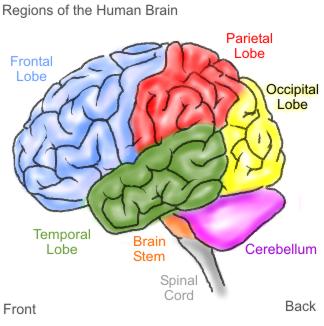
As we delve deeper into the technology we know and love, it's important to realize just how intricate computers really are. Now, you might be saying to yourself, " Why exactly do I need to know every inner-working of my computer?" It's quite simple; the better you understand the technology you utilize on a daily basis, the more efficient and effective you become at utilizing such technology. One of the most integral parts of a PC is the processor. A common name for a processor is the "brain of the PC." This goes to show that pretty much any process (hence the name processor) works through the processor in order to work properly.
Let's explore deeper into the mind of computers. The CPU or computer processing unit follows the orders of a running program in order to receive the necessary results the person is trying to receive. A processor has a cycle called a machine cycle; this cycle occurs in a series of steps to make one line of instuctions from a program complete. The machine cycle consists of four parts: fetch, decode, execute and store. Originally, when PCs were introduced decades ago, PCs would go through this process step-by-step, which would cause PCs to take a while to load programs and execute various tasks. CPUs have multiple components that work on each step of the machine cycle, which was the initial cause for slow processing. Now, CPUs utilize a technique called pipelining; pipelining is the basic idea that if there are multiple components working on various steps of a cycle, when one is finished, instead of waiting for the other components to be finished with that instruction, it can continue onto its next instruction. This saves time and alleviates some frustration an individual may have when waiting for a computer to finish a given task. Below is an example of pipelining.

Although pipelining may be fast enough for some, there are now processes far more advanced such as parallel processing. Parallel processing involves utlizing multiple processors on one motherboard. These processors work together to execute various processes or programs at once. Parallel processing is a faster alternative to the utilization of just one processor, much like a car having one engine with NOS as a booster of energy. In last ten years, parallel processing is capable with just one CPU, but it must be built as a hyperthreading cpu, dual core processor, or quad core processor. Hyperthreading utilizes one CPU but it shows on the computing system as two; it also increases performance by about 30% if there is support and application software in place. A dual core works even better than hyperthreading with two distinct processors with 50%-80% higher performance than a cpu with only one processor of similar clock cycle. A quad core processor works even better than a dual core processor working 50%-80% faster than a dual processor. Utilizing a quad core processor will overwhelming make your computer run faster.
References:
wpcontent.answers.com/wikipedia/commons/thumbs/c/cb/Pipeline_4_stage.svg/376px-pipeline,_4_stage.svg.png
quatumlearningblog.files.wordpress.com/2009/02/brain1.jpg
Subscribe to:
Posts (Atom)